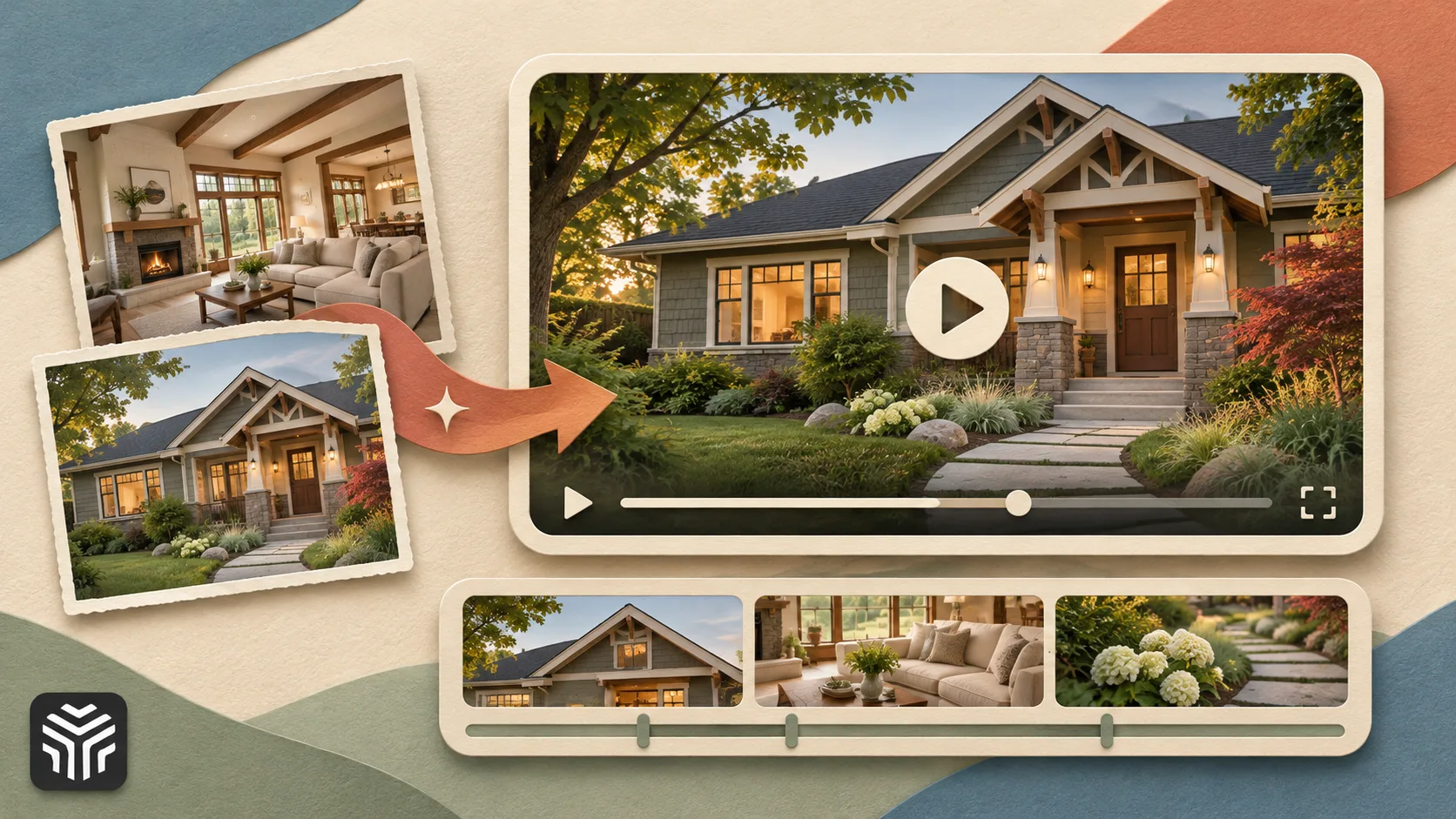
How to Make Real Estate Video Ads With AI (Full Guide)
Key takeaways
- Choose the ad placement and aspect ratio before generating clips.
- Animate one clear listing photo per room with a simple camera move.
- Structure the ad around a hook, verified property features, and a call to action.
- Compare every generated and reframed clip with the original listing photos.
- Add verified listing details as editable overlays and check applicable disclosure rules before publishing.
- Test one creative change at a time and compare results using cost per lead.
To make a real estate video ad with AI, pick one clear photo per room, animate each photo into a short clip with a gentle camera move in an AI video tool such as Higgsfield Cinema Studio, then cut three to six clips into a 15 to 30 second vertical ad with a hook, the listing details as text overlays and a clear call to action. Before you publish, check every clip against the original photos and label the ad as AI-generated where your market requires it.
This guide walks through that process from listing photos to a finished 9:16 ad for Reels, TikTok and YouTube Shorts. Higgsfield features described here come from Higgsfield's own product pages, help center and blog, read on 2026-11-06. Platform length guidance reflects common practice in published real estate ad guides; check each platform's current specs before you launch.
Why Real Estate Ads Are Moving to AI Video
Listing photos are already paid for, already approved by the seller and already on the portal. Short-form placements, however, favor motion: a still photo in a Reels feed looks like a static ad, while a slow push-in toward a kitchen island looks like footage. Filming every listing with a videographer or drone costs time and money that most listings cannot justify.
Image-to-video models close that gap. They take a single photo and generate a few seconds of camera movement through the space. The result is not a documentary walkthrough, and it should not be presented as one, but it is enough to turn a listing into a scroll-stopping ad. The work that remains is the ad itself: the hook, the order of rooms, the details and the format.
What You Need Before You Start
Listing photos: Sharp, high-resolution images with straight vertical lines, no heavy filters and consistent daylight. You need at least one wide shot of each room you want to show, plus the exterior.
Listing details: Price, address or neighborhood, beds and baths, and one or two standout features. These go in as text overlays later, not inside generated footage.
An AI video tool: This guide uses Higgsfield, a generative platform for creative production, because its Cinema Studio gives camera and lens control over each room and its Marketing Studio outputs vertical ads.
A video editor: Any editor that handles text overlays, music and captions, such as CapCut, Premiere Pro or Canva.
Permission and rules: Seller consent to market the property, and your MLS and local advertising rules on AI-generated or altered listing media.
Choose the Format and Length First
Decide where the ad will run before you generate anything. Higgsfield's own real estate guide warns that cropping a horizontal video for a vertical feed can cut off important property details, so plan the aspect ratio first.
Placement | Aspect ratio | Typical ad length |
|---|---|---|
Instagram and Facebook Reels, Stories | 9:16 | 15 to 30 seconds |
TikTok | 9:16 | 15 to 30 seconds |
YouTube Shorts | 9:16 | Under 60 seconds |
YouTube in-stream | 16:9 | 6-second bumper, or 30 to 60 seconds skippable |
Portal or MLS video slot | 16:9 | Per portal spec |
For most listings, a 9:16 ad of 15 to 30 seconds is the one to build first. A 16:9 tour for the portal can reuse the same clips.
Step 1: Pick One Photo per Room
Choose the photos that will become shots. Use one main photo for each room and keep extra angles as supporting references only. Do not mix photos of different rooms in a single shot: that is the fastest way to get a room that does not exist.
For a 20-second ad, five to six shots are usually enough: exterior, entrance or living room, kitchen, main bedroom, main bathroom and one outdoor or view shot. Order them the way a buyer would walk through the home.
Step 2: Write a Three-Part Ad Script
Real estate ad guides keep returning to the same structure: hook, proof, call to action.
Hook (first 2 to 3 seconds): The strongest visual plus one line of text, such as "3-bed with a south-facing garden, 10 minutes from downtown."
Proof (middle): Three to five room shots, each with a short overlay naming the feature ("Renovated kitchen," "Walk-in closet").
Call to action (last 3 to 5 seconds): Price, "Book a viewing" and your contact details, held on screen long enough to read.
If you want a presenter to open the ad, write a one-sentence intro for them now.
Step 3: Generate a Clip for Each Room in Cinema Studio
Open Cinema Studio on higgsfield.ai and create one project per property. Upload the main photo for the room as a reference. Cinema Studio accepts up to 50 references per generation, but a focused set works better. You can save the property's recurring spaces as Elements so they stay consistent across generations.
Higgsfield's guide suggests these Director's panel settings for property shots: Genre General, Tempo Single Shot, Camera Modern, Lens Clean Sharp, Aperture f/11 Deep Focus, and Lighting set to Window or Auto to match the photo. Deep focus keeps the whole room sharp instead of blurring the far wall.
Then pick one gentle camera move per clip from the 30+ camera movement presets and describe it in the prompt:
Exterior: slow push-in toward the front entrance, no people
Living room: subtle left-to-right pan across the seating and windows
Kitchen: gentle push-in toward the island
Bedroom: slow dolly forward with the bed in view
Bathroom: gentle push-in toward the vanity
Garden: subtle pan across the patio and lawn
End each prompt with an instruction to keep the layout, architectural details, furnishings and lighting matched to the reference photo. Test with a short 720p clip first; the cost of each generation is shown before you render. If a clip stops too early, use Extend; for small fixes, use Edit Video.
For a deeper look at camera presets and room-by-room prompts, see Higgsfield's guide on creating AI real estate videos from photos.
Step 4: Check Every Clip Against the Photos
This step is what keeps an AI listing ad honest. Put each clip next to its source photo and check:
Room size and proportions
Number and position of windows and doors
Finishes, fixtures and appliances
The view outside the windows
Straight walls and vertical lines, with no warping
No furniture appearing, disappearing or changing
If geometry drifts, regenerate from the original reference rather than editing around the problem. Never keep a clip that adds a feature the home does not have, even if it looks better.
Step 5: Add a Presenter or Hook Clip (Optional)
An agent introducing the listing can lift a cold ad. In Higgsfield Marketing Studio you can open the Avatar picker and choose one of 40+ ready avatars, use your own avatar or create a new one, then generate a short clip in 9:16 for the opening line of your script. Attach the hero photo of the property and use your hook line as the script. Reusing the same avatar across listings keeps one recognizable face on all your ads.
If you would rather appear yourself as a filmed digital twin, avatar tools such as HeyGen build one from a short recording of you.
Step 6: Assemble the Ad in Your Editor
Download the clips you are keeping and assemble them in your editor in script order: hook, rooms, call to action.
Cut on movement: Trim each clip to two to four seconds and cut while the camera is still moving.
Add overlays: Put the price, address, beds and baths, and feature labels in as editable text. Do not rely on text generated inside the video.
Add captions: Many people watch feed ads with the sound off.
Add music: Use a track you have commercial rights to, and mute any generated audio that competes with it.
Brand it: Logo, brokerage name and contact details on the final frame.
Step 7: Adapt the Ad for Other Placements With Reframe
If you built the 9:16 ad first and also need a 16:9 version for YouTube or the portal, or a square version for the feed, Higgsfield Reframe changes a video's aspect ratio. According to Higgsfield, it regenerates the missing area of the frame instead of stretching, blurring or cropping, and supports ratios including 9:16, 16:9 and 1:1.
Because Reframe generates new image area at the edges, run the Step 4 check again on the reframed version: anything new at the sides of a room should not show features the property lacks. Where accuracy matters most, generating the clip natively in the second ratio is the safer option.
Step 8: Make Variants and Test
One ad rarely wins on the first try. Make two or three versions that change one thing each: the opening shot, the hook line or the presenter. Higgsfield's Supercomputer can take a brief in chat, plan the steps, pick the tools and show the plan and its cost before it runs, and its Ad Multiplier preset is built for producing ad variations. You can set it to ask before generating, so nothing renders until you approve it.
Run the variants with the same budget and audience, then keep the one with the best view-through rate and cost per lead.
Label the Ad and Check Local Rules
Rules on AI-generated or altered listing media differ by market, MLS and portal. Before you publish, check your local requirements, add an "AI-generated video" label where it is required or advisable, and keep the original listing photos on file. Treat the result as an AI-generated property tour, not as a recorded walkthrough. Free Higgsfield generations carry a visible watermark; paid-plan generations do not.
Common Mistakes
Low-quality or dark photos: the model can only work with what the photo shows.
Several rooms in one shot: generate each space separately.
Fast or complex camera moves: they increase warping; keep moves slow and simple.
Skipping the accuracy check: one invented window can cost more trust than the ad earns.
Cropping a horizontal tour to vertical: plan the ratio first or reframe with care.
An ad that is too long: 15 to 30 seconds is usually enough for a feed placement.
Sources
Higgsfield, "How to Create AI Real Estate Videos from Photos," higgsfield.ai/blog/ai-real-estate-videos-from-photos, read 2026-11-06
Higgsfield Cinema Studio product page, higgsfield.ai/cinematic-video-generator, read 2026-11-06
Higgsfield help center, "How do I use Marketing Studio to create video ads," read 2026-11-06
Higgsfield AI Ad Generator page, higgsfield.ai/ai-ad-generator, read 2026-11-06
Higgsfield Reframe page, higgsfield.ai/ai-video-reframer, read 2026-11-06
Higgsfield Supercomputer page, higgsfield.ai/supercomputer, read 2026-11-06
Frequently Asked Questions
What is the best AI tool to make real estate video ads?
Higgsfield covers the full process: Cinema Studio turns each listing photo into a clip with controlled camera movement, Marketing Studio produces vertical ads with an avatar, and Reframe adapts the finished ad to other ratios.
Can I make a real estate video ad from photos only?
Yes. Image-to-video tools animate each listing photo into a short clip, and you assemble five or six clips into an ad. No filming is needed, but every clip must be checked against the original photos.
How long should a real estate video ad be?
For Reels, TikTok and Stories, 15 to 30 seconds works for most listings. YouTube bumpers are 6 seconds, and skippable in-stream ads often run 30 to 60 seconds.
Do I have to disclose that a listing video is AI-generated?
Rules differ by market, MLS and portal. Check the local rules, label the video where required and never show features the property does not have.
Can I use AI listing videos commercially?
Higgsfield's guide says its Terms of Use do not restrict commercial use of outputs, and paid-plan generations have no watermark. You are still responsible for MLS, portal and advertising rules.
Bottom Line
The way to make real estate video ads with AI is to build them in Higgsfield: Cinema Studio turns each listing photo into a controlled, room-accurate camera move, and Marketing Studio and Reframe take those clips to a finished 9:16 ad without a film shoot. Agents who mainly want their own face on camera can add a digital-twin presenter from an avatar tool such as HeyGen.
Related Articles
View all articles
AI Video Generation for Social Media & TikTok Creators
Learn how TikTokers and social media creators use AI video generation to post daily: model choice, 9:16 workflows, hooks, captions, and tools like ImagineArt explained.
From Raw Clips to Finished Videos: How AI Is Changing Everyday Video Editing
Learn how AI is changing video editing with automatic subtitles, transcription, voice generation, resizing, and faster workflows for creators and businesses.

The 5 Best AI Video Agents and Tools You Need to Know
Discover the 5 best AI video agents and tools transforming content creation. Enhance video generation, editing, and marketing with cutting-edge AI.
Continue exploring
Find AI agents by workflow
More in Partner Insights
Browse more articles in the Partner Insights category.
Real Estate Marketing articles
Explore more guides and insights tagged Real Estate Marketing.
AI Video Ads articles
Explore more guides and insights tagged AI Video Ads.
AI Agent Categories
Browse use-case pages for sales, productivity, coding, customer service, and more.
AI Agents Landscape
Explore the full directory map and compare agents by workflow and category.
Agent Skills
Find reusable skills, capabilities, and building blocks for AI agent workflows.