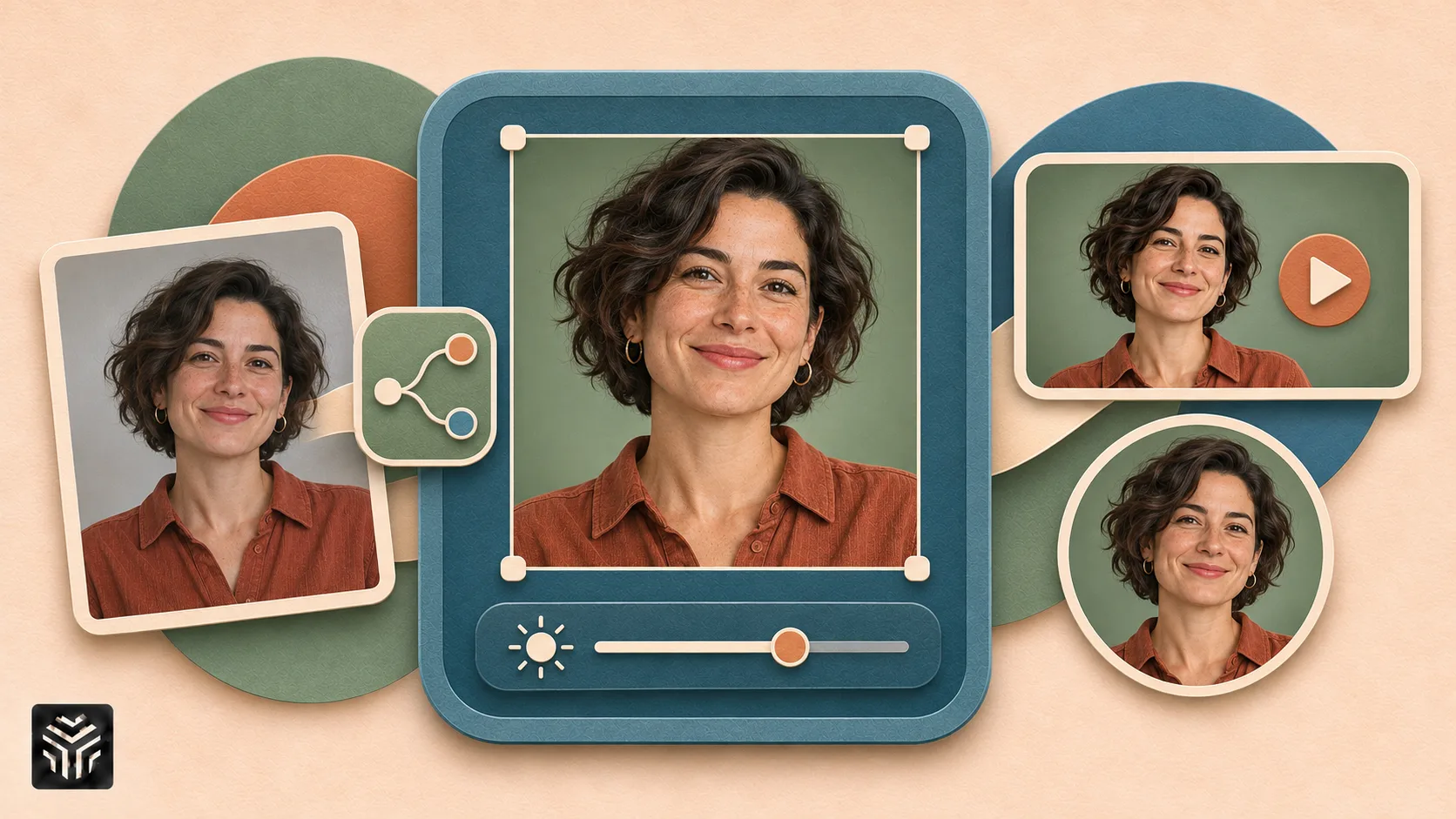
10 Best Practices YouTube Creators Use to Refresh Portraits for Thumbnails and Channel Assets with AI

A strong YouTube portrait must stay recognisable at mobile size, leave room for a headline and still look like the person viewers expect to see. Creators often have a useful photo with the wrong crop, uneven light or a distracting background, yet a new shoot is not always practical. This guide explains 10 ways to refresh portraits for thumbnails, profile images, banners and other channel assets without over-editing the creator's identity.
Why Do YouTube Portraits Need an AI Photo Editing Workflow?
YouTube portraits need a controlled workflow because stronger visual clarity should not come at the cost of a creator's recognisable face. Lighting, background and composition can be improved, but facial structure, expression and personal features should remain credible.

Creators can use an AI picture editor for portraits when the source photo already has a clear expression but needs a cleaner background, brighter face or more balanced colour. With Pollo AI, the instruction can name one change and the details to preserve, which makes it easier to compare the edit with the original before using it across a channel.
What Are the 10 Best AI Photo Editing Practices for YouTube Portraits?
The safest workflow begins with a recognisable source portrait, changes one visual problem at a time and ends with a mobile-size review. Use these 10 practices in order:
1. Choose a source with a readable expression. Start with a sharp image where the eyes, mouth and head angle support the video's emotion. Editing cannot repair an expression that does not match the topic.
2. Create space for the thumbnail layout. If the portrait is cropped too tightly for a face, headline and visual cue, use an AI image expander to create room for the headline before adding text. Inspect the new outer area for repeated patterns, stretched objects or background details that distract from the subject.
3. List the identity details to preserve. Note facial shape, hairline, skin tone, glasses, facial hair and any signature styling. Compare these details after every edit so the portrait still feels familiar.
4. Work from the largest available file. A compressed screenshot may break around hair and glasses when the background changes. Begin with the original photo whenever possible, then export smaller channel versions later.
5. Correct face lighting before adding contrast. Brighten the face and soften harsh shadows before increasing overall contrast. This keeps expressions clear without making skin look flat or unnaturally polished.
6. Remove distractions that compete with the face. Clear stray objects, awkward signs or background people, but keep useful context when it explains the video's setting. The portrait should look intentional rather than detached from the story.
7. Choose a background that supports the topic. A tutorial, travel vlog and reaction video need different visual cues. Keep the setting simple enough for the face and headline to remain the first things viewers notice.
8. Protect hair, glasses and facial edges. Zoom in around fine hair, earrings, frames and shoulders after a background edit. Rough outlines become especially obvious when a thumbnail uses bold colour behind the portrait.
9. Build every asset from one approved master. Approve the portrait first, then create the thumbnail, profile image, banner and community-post crops. This prevents the creator's face or colour treatment from changing between assets.
10. Review at actual mobile size. Shrink the finished design until it resembles the YouTube home feed. Check whether the expression reads quickly, the face remains recognisable and the background still supports the message.
Which YouTube Portrait Problems Can AI Fix Safely?
AI is most dependable when it improves portrait presentation without changing who the creator appears to be. Use this quick decision table before editing:
Portrait problem | Useful correction | Required check |
Busy background | Remove clutter or simplify the setting | Hair and shoulder edges |
Face is too dark | Relight and balance exposure | Natural skin tone and texture |
Crop is too tight | Extend or reposition the canvas | Head and body proportions |
Temporary blemish | Use light, local retouching | Identity and skin texture |
Blurred eyes or expression | Choose another source or reshoot | Do not invent facial detail |
How Do You Keep YouTube Channel Assets Visually Consistent?
Use one approved portrait treatment and a short visual guide for every recurring channel asset. The guide should define:
1. Face treatment. Set limits for skin retouching, eye brightness, contrast and sharpening so the creator looks consistent without appearing artificial.
2. Background system. Choose a small set of approved colours or settings that distinguish content series while keeping the overall channel recognisable.
3. Portrait placement. Define where the face normally sits and which side keeps space for text, products or supporting graphics.
4. Export rules. Keep named master files and channel-specific crops so the team does not repeatedly edit compressed images downloaded from YouTube.
When Should You Reshoot Instead of Editing a YouTube Portrait?
Reshoot when the source lacks a clear, believable expression or enough facial detail to preserve the creator's identity. A new portrait is the better choice when the eyes are blurred, the pose conflicts with the video topic, the face is heavily blocked or the required camera angle is completely different. Editing can improve a strong moment, but it should not manufacture a reaction the creator never made.
Ready to Refresh a YouTube Portrait with Pollo AI?
Start with one sharp portrait and one problem that stops it from working as a thumbnail. Upload it to Pollo AI, describe the single correction and name the facial details that must remain unchanged. Compare the result with the original at full size and mobile size, then approve one master before preparing the channel crops. This gives the portrait more impact while keeping the person viewers recognise.
Related Articles
View all articles
From Raw Clips to Finished Videos: How AI Is Changing Everyday Video Editing
Learn how AI is changing video editing with automatic subtitles, transcription, voice generation, resizing, and faster workflows for creators and businesses.
6 Best AI Video Editors for YouTube Creators in 2026
Explore the best AI video editors for YouTube creators in 2026. Compare tools for long-form videos, Shorts, captions, thumbnails, and content repurposing.
How AI Agents Are Changing Timeline-Based Video Editing
Learn how AI agents are transforming timeline-based video editing by helping with footage organization, editing workflows, revisions, and creative tasks.
Continue exploring
Find AI agents by workflow
More in Partner Insights
Browse more articles in the Partner Insights category.
AI Photo Editing articles
Explore more guides and insights tagged AI Photo Editing.
YouTube Thumbnails articles
Explore more guides and insights tagged YouTube Thumbnails.
AI Agent Categories
Browse use-case pages for sales, productivity, coding, customer service, and more.
AI Agents Landscape
Explore the full directory map and compare agents by workflow and category.
Agent Skills
Find reusable skills, capabilities, and building blocks for AI agent workflows.